Features
The editor
Every doc is a plain .md file, and every doc opens in a live editor. Several people type at once with their own cursors, and what they write is saved back to the file exactly as markdown, so your editor, git and your agent see the same text the browser does.
Editing together#
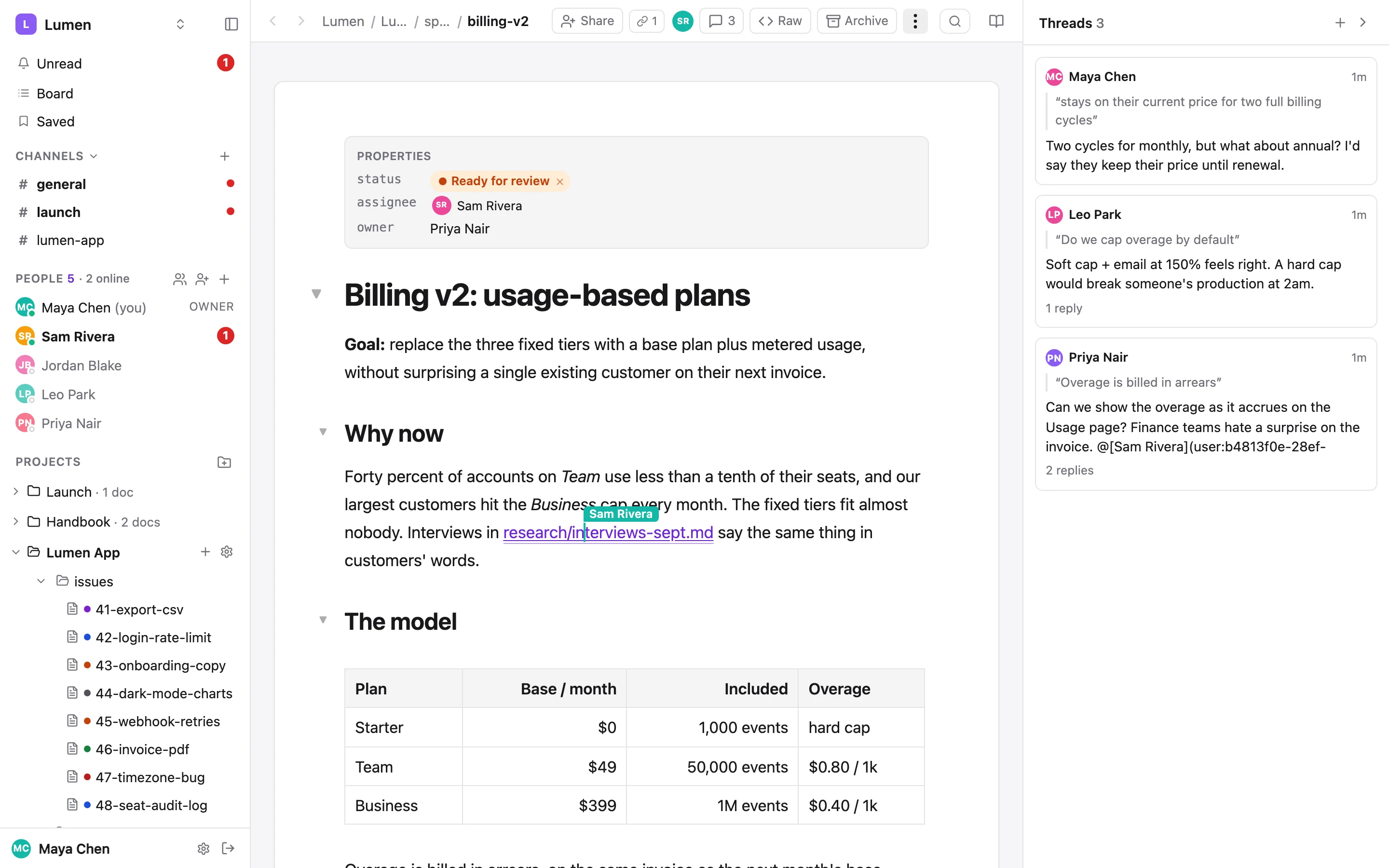
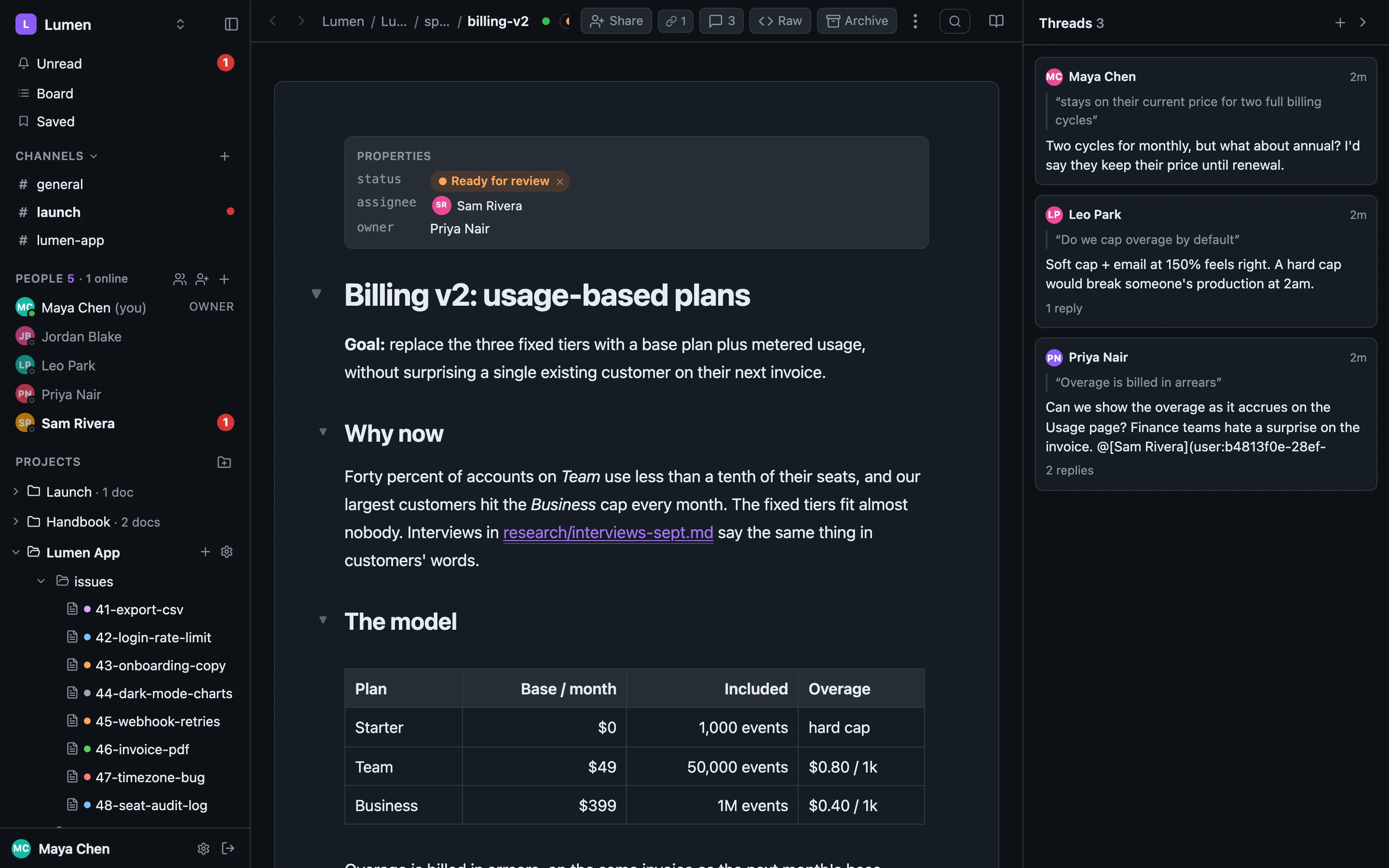
Open a doc and start typing. Everyone else with it open sees your edits as you make them, and you see theirs. Each person has a coloured cursor with their name on it. The header shows a stacked avatar for everyone else who has the doc open, in their cursor colour, with +n past five; one person in two tabs is one avatar.
Edits from outside the browser land the same way. A change saved in a synced folder, a sharedoc files put from an agent, or a restore from History is merged into the live document while people are typing in it. Nobody's words are overwritten, and nobody has to reload.
A small dot after the breadcrumb shows the connection. It is only spelled out when the doc is not connected.
Writing#
Markdown as you type#
Type markdown and it turns into formatting: ## for a heading, - or 1. for a list, - [ ] for a checklist, > for a quote, ``` for a code block and --- for a divider. Selecting text shows a toolbar: bold, italic, strikethrough, code, link, headings, lists, quote and comment.
The / menu#
Type / at the start of a line for the block menu: Text, Heading 1–3, Bullet list, Numbered list, Task list, Quote, Code block, Table, Divider, Image and Video. Keep typing to narrow it; the arrow keys and Return pick. The menu opens above the line when you are near the bottom of the window.
Keyboard#
| Keys | Does |
|---|---|
| ⌘ ⌥ 1–6 | Heading level 1–6 for the line you are on |
| Tab / ⇧ Tab | Indent / outdent a list item |
| Return on an empty item | Ends the list |
| Backspace on an empty bullet | Leaves the list; the line becomes a paragraph |
| ⌘ Z / ⌘ ⇧ Z | Undo / redo your own edits, never someone else's |
| ⌘-click a link | Opens it in a new tab while editing (Ctrl-click on Windows and Linux) |
Lines joined with ⇧ Return are one paragraph. Making one of them a heading, a quote or a list item splits it off first, so only the lines you picked change.
Folding sections#
Every heading has a chevron that folds the section under it. Folding is only on your screen and never changes the doc. The page menu (⋯) has Collapse all. On a phone the chevron sits just before the heading with a finger-sized target.
Links between docs#
Link to another doc the way markdown always has, with a relative path: [the plan](../plans/q4-roadmap.md). A link into the workspace is drawn by what it points at:
- Open: an ordinary accented link.
- Archived: muted and struck through, the way a closed issue reads.
- Missing: red and dashed, a typo or a doc that was deleted. Hovering says Not in this project with the path.
Rest the pointer on a link for a preview: the doc's title, its statuses, Project / folder, who last edited it and when, and Open. On a phone, a tap raises the preview. A link ending in #heading scrolls to that heading, in this doc or the one it points at. A link to a PDF or an image opens its preview; a link to a folder opens the folder. External links open in a new tab.
Tables#
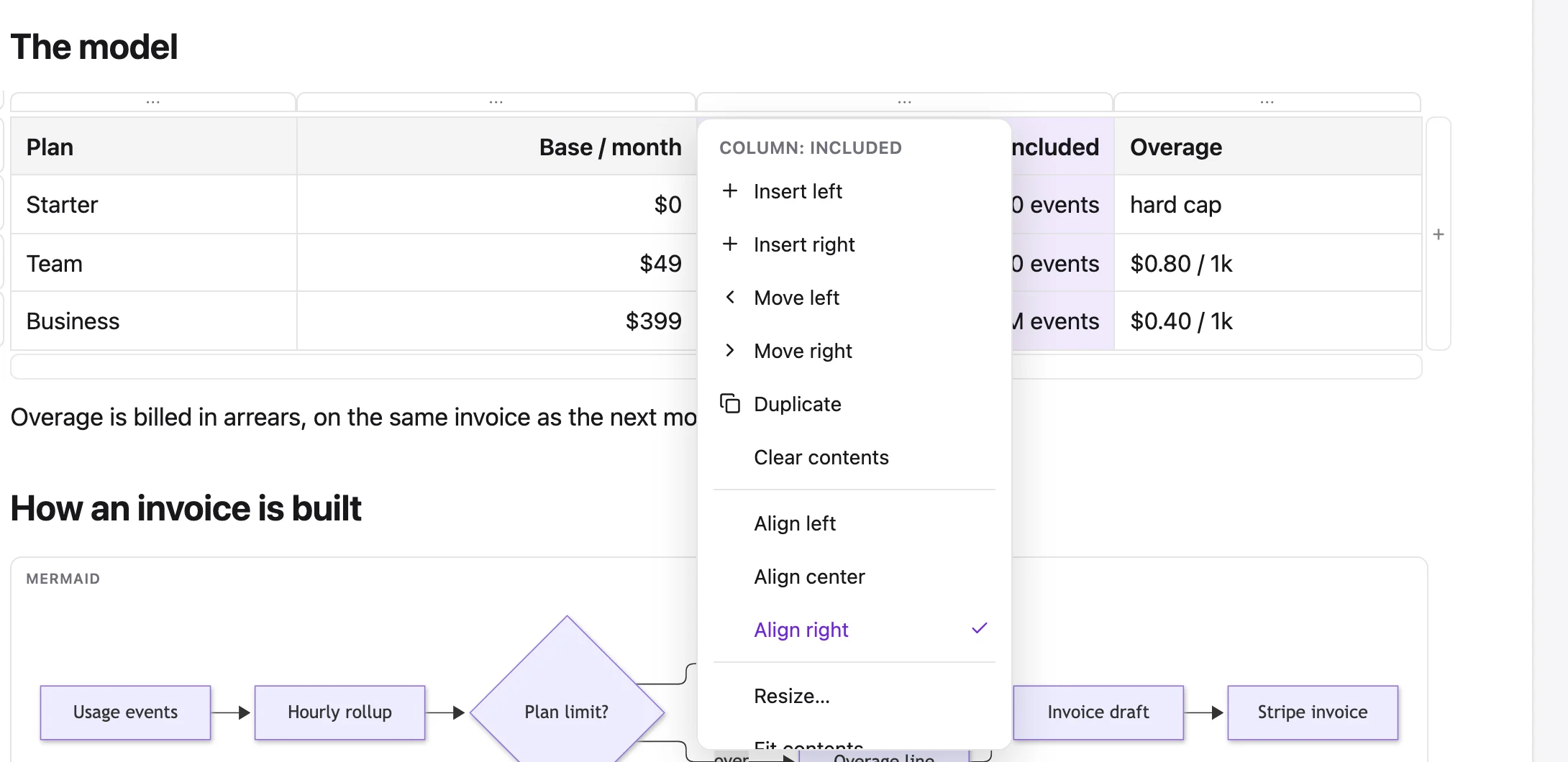
Tables stay GFM pipe tables in the file. In the editor, hover a table (or put the caret in it) for handles: a grip on every row and column, a table handle, and edge buttons that add a row or a column.
- Row and column menus: insert, move, duplicate, delete, clear, align, resize and sort. Deleting anything with content asks first and says how many cells it touches. The header row always stays first.
- Alignment: Align left / center / right writes
:---,:---:or---:into the file. - Sort: Sort A→Z on a column, or Sort rows… for up to three keys compared as Text, Number or Date, with a preview. Number and Date are strict: values that don't parse are listed and sort after the valid ones. Sorting reorders the rows in the markdown once, for everyone.
- Filter rows… (or ⌘ F inside a table) hides rows that don't match, in this tab only. Nothing is saved.
- Paste from a spreadsheet: tab-separated cells paste as a block from the current cell and grow the table as needed. When more than one filled cell would be replaced, a preview asks first.
- Column widths: drag a boundary, or use Resize…, Fit contents and Fit columns to page. Widths are remembered in this browser on this device only and never written to the file.
Moves, sorts and duplicates are applied to the moved rows only, so a keystroke someone else types at the same moment is never put into the wrong row (only one typed into the very row being moved is lost).
Diagrams#
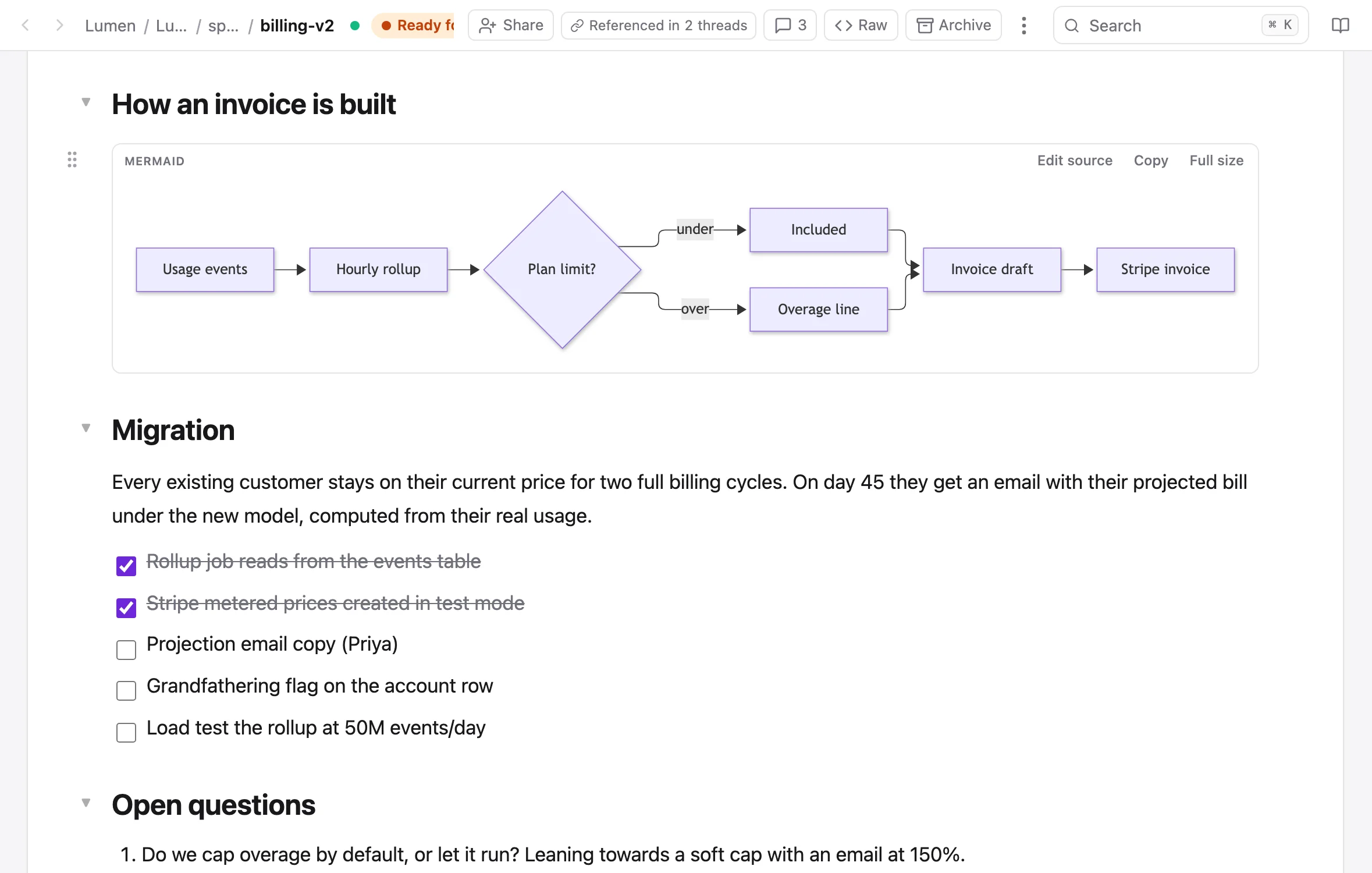
A fenced code block tagged mermaid is drawn as the diagram: flowcharts, sequence diagrams, state, gantt, ER, anything mermaid knows. It follows your light or dark theme, a wide diagram is scaled to the column, and Full size opens it at its real size.
```mermaid
flowchart LR
  A[Usage events] --> B[Hourly rollup]
  B --> C{Plan limit?}
  C -- over --> E[Overage line]
```
In a doc you can edit, Edit source (or a click on the diagram) opens the text under it. The drawing updates when you pause typing. A source that doesn't parse shows mermaid's error, with the last good drawing kept above it while you fix it. Diagrams render in mermaid's strict mode, so a click directive or a javascript: link runs nothing.
Images and video#
Paste or drop an image onto the page (or use /Image, or ⋯ → Insert image…) and it is uploaded into a media/ folder next to the doc. The markdown gets a plain relative link, so the picture is right there in a synced folder and GitHub renders it too:
A video works the same way (/Video or Insert video…). The file gets a plain link and the editor draws a player under the paragraph, with a poster frame made in your browser as it uploads. An audio file (.mp3, .m4a, .wav…) is a link too, with a player row under its paragraph: play, the name, a scrubber, the length and the speed (1× to 2×, or 0.75×; this browser remembers the last one you picked). Starting one pauses any other audio playing on the page. Images already in a synced folder, written in any editor as , render too.
Any other file dropped on a doc goes to _inbox with a link where you dropped it.
Properties (front-matter)#
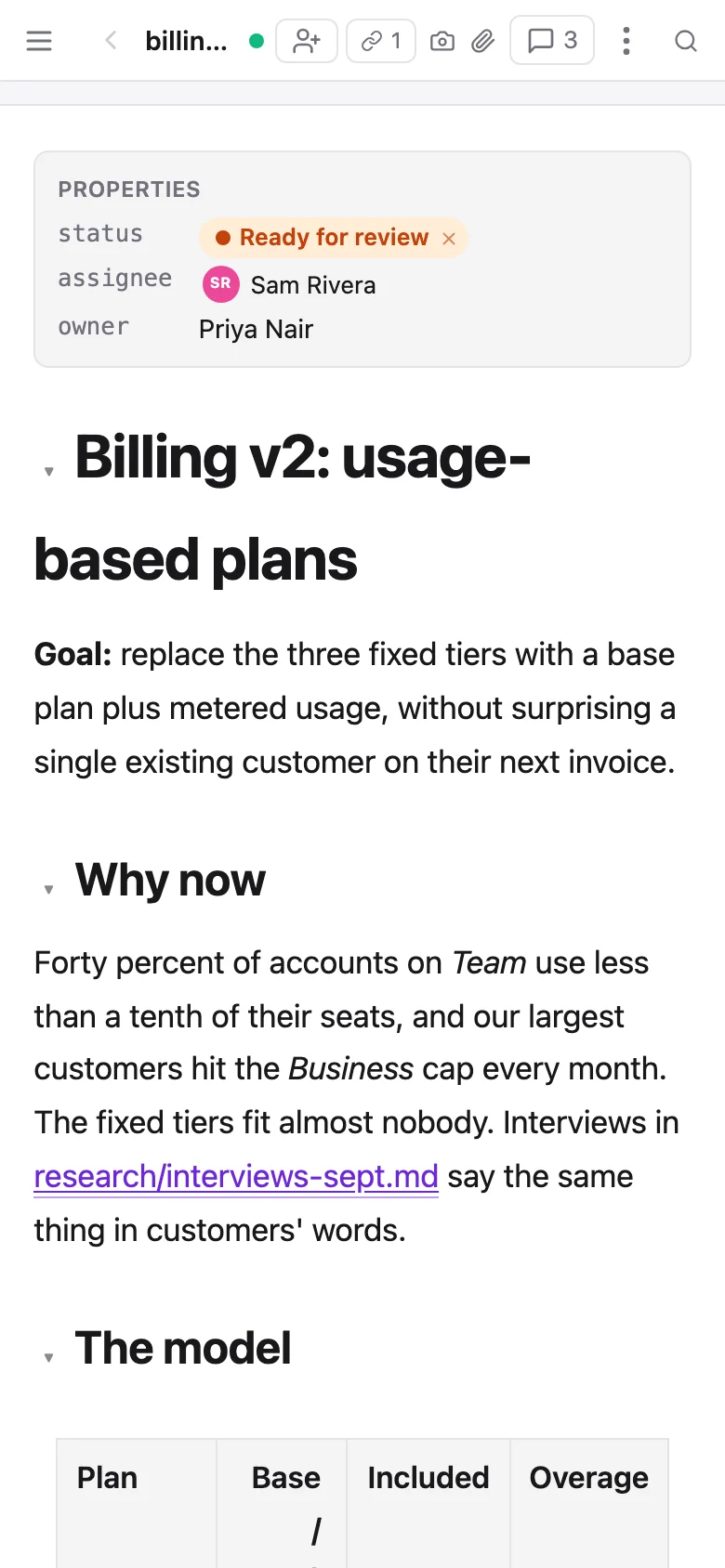
A YAML block at the very top of a file, between two --- lines, is kept byte for byte: comments, key order, spacing and keys share-doc knows nothing about all survive every edit, merge and save. In the editor it shows as a properties strip at the top of the sheet, each key with its value.
---
status: [ready-for-review]
assignee: [email protected]
owner: Priya Nair
---
# Billing v2: usage-based plans
status and assignee are live in the strip: chips and pickers you can click. See Statuses & the board. Other keys are shown as they are. A block whose YAML doesn't parse says Properties unreadable, shows the text and is left alone. Edit as text opens the raw view, where the block is ordinary text.
The strip isn't part of the text flow: the arrow keys step past it, ⌘ A selects the body only, Backspace at the start of the body doesn't eat it, and it isn't printed.
Raw view#
Raw in the doc header (or ⋯ → Raw markdown) swaps the page for its source: monospace, line-numbered, the exact text sharedoc files cat prints and your editor opens. Copy in the corner copies the whole document.
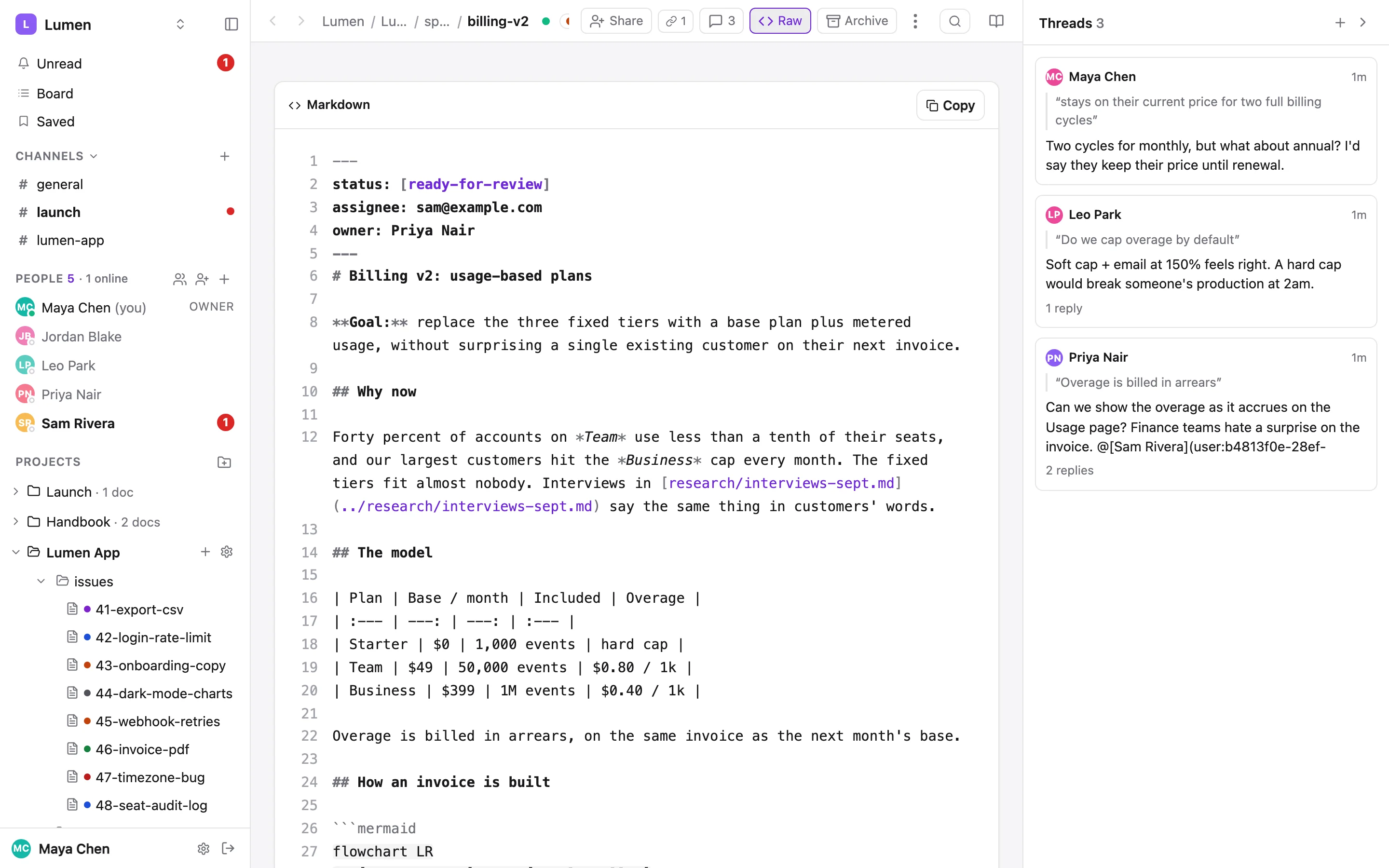
The raw view is live and, for anyone who can write the doc, editable. What you type is merged into the shared document when you pause, not on a save button. Two people in the raw view, or one in raw and one in the rich editor, end up on the same document with their cursors visible to each other. Undo in the raw view takes back your typing, never someone else's.
The serializer has a canonical form: - for a * bullet, a backslash before a literal *, a table cell on one line. The raw view leaves your buffer as you typed it until you leave the editor. That rewrite is its own undo step, so ⌘ Z first gives you back exactly what you typed.
What round-trips#
The markdown is the document. These survive a trip through the editor:
- Headings, paragraphs, bold, italic, strikethrough, inline code and links, including a link whose label is a code span
- Bullet, numbered and nested lists, and GFM task lists (
- [ ]/- [x]) - GFM tables with column alignment; bold and code inside cells
- Fenced code blocks, including
mermaid - Quotes and horizontal rules
- Images and relative links, left as the paths you wrote
- YAML front-matter at the first byte, byte for byte
- A single trailing newline at the end of the file
Some shapes are written back in canonical form: a * bullet becomes -, list items get a blank line between them, an indented code block becomes a fenced one, a table's divider row is written as | --- |, and a literal * or [ is escaped. Task markers on numbered lists (1. [ ]) stay plain text.
sharedoc files cat lumen-app specs/billing-v2.md prints exactly what the raw view shows. If something renders unexpectedly, open Raw first.
On a phone#
Editing a doc on a phone or tablet brings up a formatting bar just above the keyboard: outdent and indent (the Tab keys a phone doesn't have), the heading level (tap H to step through H1, H2, H3 and back to text), bullet, checklist and numbered lists, and undo and redo. Tapping a button keeps your place and the keyboard. Done puts both away.
The page menu#
⋯ in the doc header holds the rest: Copy page link, Copy path (the file's path in a synced folder), Copy contents, Print, Collapse all, History, Raw markdown, Insert image… / Insert video…, Save for later and Remind me about this doc…. Right-click a heading's handle for the section menu: copy the section, copy a bookmark link to it, save it for later, or set a reminder. Clicking the doc's name at the end of the breadcrumb copies its path.
Archive and reopen#
Archive in the doc header closes a doc: it leaves the tree and the default search, and stays readable at its URL with a banner (Archived by Maya · 2 days ago · Reopen). Its history and comments stay, and threads stay open for replies. Reopen puts it back in place. Deleting a synced file on disk archives it too. Editing an archived doc from outside the browser (a synced folder, a files put) reopens it and says so in the project channel.
sharedoc files archive lumen-app issues/46-invoice-pdf.md --yes
sharedoc files reopen  lumen-app issues/46-invoice-pdf.md
Only people who can write the doc see Archive. More on what archive means for files in Files & media.