Features
Sharing & permissions
Access comes in three layers: your seat in a workspace, your role on a project, and any single file or folder someone shares with you. Every route (the browser, the CLI, the API, the live editing socket) asks the same question the same way, so what you can see in one place is what you can see everywhere.
Workspace roles#
A workspace is your team: its people, channels and projects. Everyone in it holds one seat.
| Role | What it means |
|---|---|
| Owner | Created the workspace. Everything an admin can do; can't be removed or re-roled. |
| Admin | Manages people, settings, statuses, agents and storage limits. Sees every workspace-visible project, but not a private one they aren't on. |
| Member | Opens every project visible to the workspace, joins public channels, and can create projects. |
| Guest | Opens only the projects they were put on. The seat a project invitation gives by default. |
Projects#
A project is visible to the Workspace (everyone in it can open it) or Private (only its members; workspace admins are no exception). Choose when you create it; a project's owner can switch it in project settings. Going private takes the project's channel out of everyone else's sidebar, and a private project shows a lock beside its folder.
| Project role | Can |
|---|---|
| Owner | Everything, including visibility, rename, members and links. |
| Editor | Edit docs and files, comment, and add or invite people. |
| Commenter | Read and comment. The editor is locked, with a note saying so. |
| Viewer | Read only. Viewers and commenters get a read-only editing connection, not just a read-only page. |
Adding people who are already here#
A private project or a private channel has one Add people dialog: the workspace's people, a search box, tick and add, with a role for a project. It opens from project settings, the project's home page, the 👤+ on an open private project in the sidebar, and a channel's ⋮ menu. New project and New channel show the same list once you choose Private.
- Adding never changes a role. Someone already on the project keeps theirs.
- The person added gets a notification (Maya added you to Lumen App) and the project appears in their sidebar at once.
- A private project's channel follows the project: to add someone to it, add them to the project.
- An owner or editor (or a workspace admin) can add people to a project. Anyone in a private channel can add to it.
sharedoc members add [email protected] "Priya Nair" --project lumen-app --role commenter
sharedoc members add [email protected] --project lumen-app --dry-run --json
sharedoc channels add plans [email protected] [email protected]Invitations#
Invite someone who isn't in the workspace yet by email. An invitation carries two roles: the project role (viewer, commenter or editor; editor by default) and the workspace role they get when they accept. A project invitation defaults to guest, so they see only that project. Only a member, owner or admin can give member, and only an owner or admin admin.
sharedoc members invite [email protected] --project lumen-app --project-role commenter
sharedoc members invite [email protected] --project lumen-app --dry-run --json   # no mail
sharedoc members role [email protected] viewer --project lumen-app
sharedoc members remove [email protected] --project lumen-app --yes
sharedoc invites list --project lumen-app
sharedoc invites resend <id> --project lumen-app
sharedoc invites revoke <id> --project lumen-app --yes- Inviting someone already in keeps their role; the result says the roles each person actually holds.
- Inviting an address that's still pending returns it as
pendingwithout mailing it again.invites resendis the explicit way: at most once every 10 minutes and five times in all. - Removing someone from a workspace-visible project warns that they can still open it through the workspace. Removing someone from the workspace removes them from every project in it.
- Role changes, removals, resends and revokes are written to the activity log as
member.role,member.removed,invite.resentandinvite.revoked.
Join links#
A join link lets anyone who opens it join a project with a role you pick (editor, commenter or viewer), for a lifetime you pick (a day, a week, a month, or never). Make one on the project's settings page or from the CLI. Signed out, the page says who shared what and takes them through sign-up and straight back. Someone new to the workspace comes in as a guest.
sharedoc invite link --project lumen-app --role viewer --expires 7d --label "for the auditors"
sharedoc invite links --project lumen-app
sharedoc invite revoke <id> --project lumen-app     # people who already joined stay
sharedoc share ./folder creates a project from a folder and prints a join link in one step. Share a folder
Sharing one file or folder#
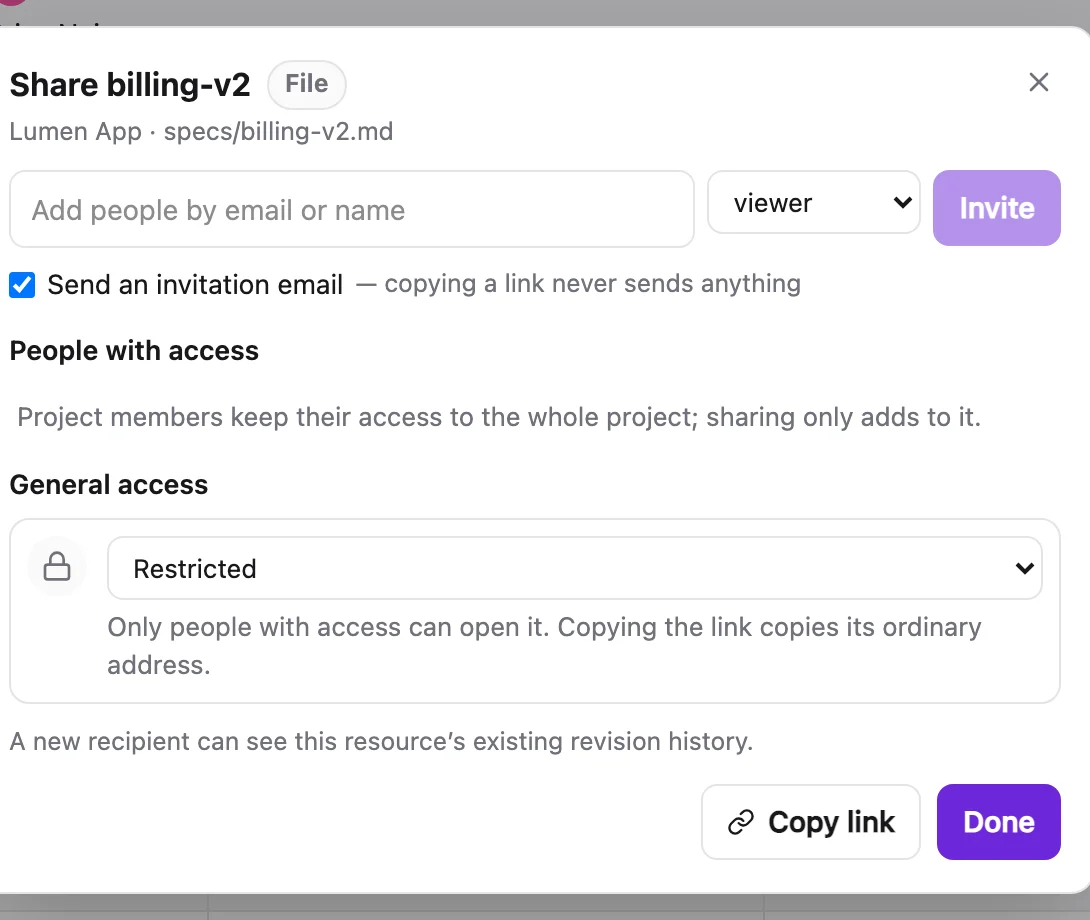
Share on a doc's header, a file's ⋯ menu or any folder opens the sharing dialog. Add people as viewer, commenter or editor: an existing account is granted at once, and any other address becomes a seven-day invitation redeemed with that verified email. A folder share covers everything inside it; a file share covers just that file.
- Grants add to membership and never lower it. Sharing never adds anyone to the project or starts a sync.
- General access is Restricted, Anyone with the link, signed in, or Workspace members with the link.
- Copy link returns the same link every time. Changing a link's role applies to everyone who joined through it: downgrades at once, upgrades to new joiners only. Changing its audience, replacing it or switching to Restricted cuts off link-derived access, and the dialog says who that affects first.
- Grants follow a file through
files mv.
What the recipient sees#
Someone who isn't a project member gets a scoped view: only the shared paths, under Shared with me in their sidebar. No siblings, no channel, no member list, and anything outside the share is a plain "not found". They can sync just the shared folder:
sharedoc access shared                                          # what was shared with me
sharedoc connect lumen-app ~/lumen-specs --folder specs         # sync only that folder
From the CLI#
sharedoc access list specs --project lumen-app                   # who can open it, and why
sharedoc access set specs [email protected] --role commenter --project lumen-app
sharedoc access invite specs/billing-v2.md [email protected] --role viewer --notify --project lumen-app
sharedoc access remove specs [email protected] --yes --project lumen-app
sharedoc invite link --folder specs --role viewer --audience workspace --project lumen-app
sharedoc invite copy --folder specs --project lumen-app          # the same link again
sharedoc invite replace --folder specs --yes --project lumen-app # rotate; --dry-run lists who loses access
sharedoc invite revoke --folder specs --project lumen-app        # back to Restricted
Every command that changes access has --dry-run, and the destructive ones need --yes.
Files sent in private places#
A file you paste, drop or attach in a DM, a group DM, a private channel or a comment on a private project's doc lands in _inbox, but only the people who can read that conversation (or that doc) can open it. That holds in the folder view, search, ⌘K, the [[ picker, files list, previews, downloads and a synced _inbox. Workspace admins get no exception.
- Move to project… takes the file out of
_inbox; from then on it follows that project's access. - Tagging a private file in an open channel shows the tag, not the file.
- Links to private files expire within 20 minutes, whatever lifetime you ask for.
CLI tokens#
sharedoc login mints a token after a browser approval where you tick workspaces and choose read or write. Every new token sends you an email. Settings → CLI access lists your tokens and revokes any of them, and mints one for a headless agent (SHAREDOC_TOKEN).
- A read token can't change anything. Every command that writes refuses it.
- A token bound to some workspaces can't reach others, or widen its own grants.
- Creating a workspace needs an account-wide write token: mint one in Settings → CLI access with no workspace ticked.
sharedoc tokens list
sharedoc tokens revoke <id> --yes
sharedoc logout # revokes the stored tokens and forgets themAn agent with its own identity reads and writes content like any member, but is refused, by name, on everything that widens access or changes settings: inviting or adding people, sharing, join links, statuses, creating projects or workspaces, renames and minting tokens. A runaway script can't grant itself more reach.