Get started
Quick start
Five minutes from nothing to a folder on your laptop that is live in the browser: you edit a file in your editor and it changes on the page, a teammate comments in the browser and the comment lands beside the file.
What you need#
- A share-doc account. Create one, or ask a teammate to invite you.
- macOS, Linux or Windows, and a terminal.
- A folder to share. For a code repo, that's its
docs/folder, never the repo root.
Create a project#
In the web app, + beside Projects in the sidebar makes one. Choose Workspace (everyone in your workspace can open it) or Private (only the people you add), and whether it gets its own chat channel.
The project opens on its own manual,
sharedoc-instructions.md: every command on this page with your project's slug filled in, and a table where your team records how the project is paired. The slug is in the address bar:/p/<slug>.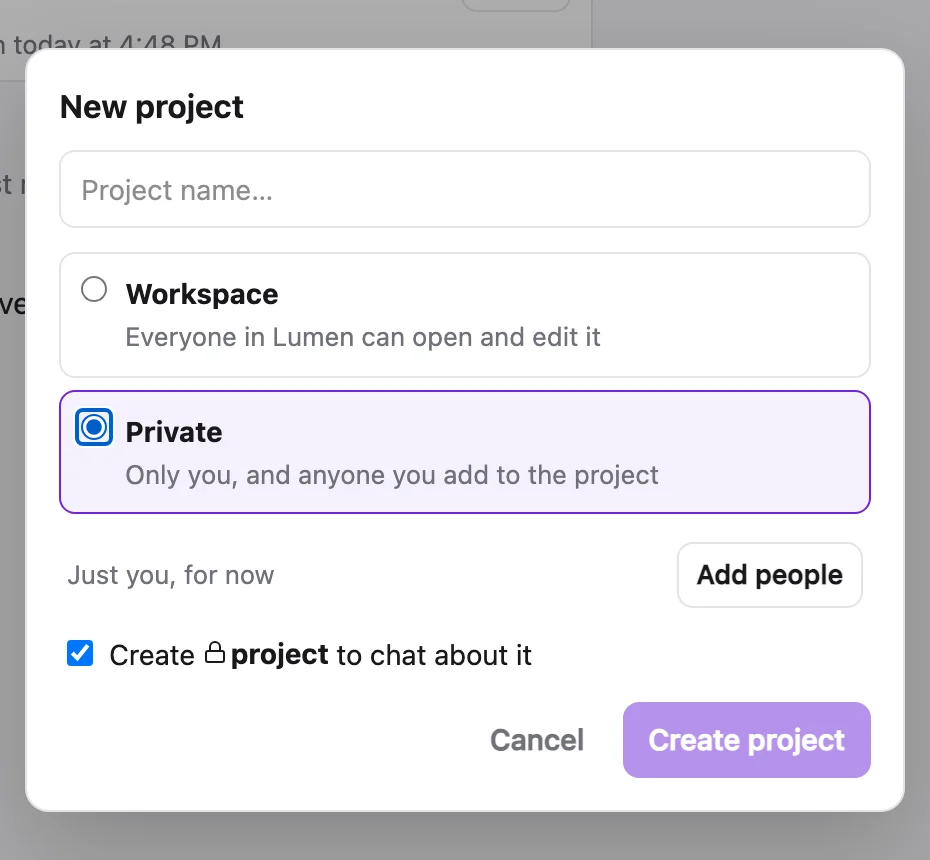
New project: Workspace or Private, and whether it gets a channel. Install the CLI#
One command installs
sharedoc(and Bun, if you don't have it). On Windows, open a new terminal afterwards so the PATH change takes effect.Installcurl -fsSL https://sharedoc.brightmotion.io/install.sh | shLog in#
Login is a browser approval, like
gh auth login: the CLI opens a page where you tick your workspaces and choose read or write. A person approves in the browser; an agent can run the login and send them the link. After it, an agent can run any command unattended.sharedoc login # --no-browser to paste a code instead (implied over SSH) sharedoc whoami # who you are, which workspaces, which server # an agent: print the link, send it to the person, redeem the code they paste back sharedoc login --no-wait --json sharedoc login --code <sd_code_…> --jsonPair a folder with the project#
sync addrecords a folder ⇄ project pair. An empty folder pulls the project down; a folder with files pushes what the project doesn't have yet. From then on both sides stay converged.sharedoc sync add lumen-app ~/Code/lumen/docsThe project's home page has this line with its slug filled in. The first push is previewed: file count, size and the biggest folders.
Run the sync as a service#
One background process keeps every pair live, starts when you log in, restarts if it dies, and updates itself when the server's document schema moves.
sharedoc sync install   # launchd on macOS, systemd --user on Linux
sharedoc sync status    # every row should say live
On Windows there's no service yet: leave
sharedoc sync runrunning in a terminal.
Check it worked#
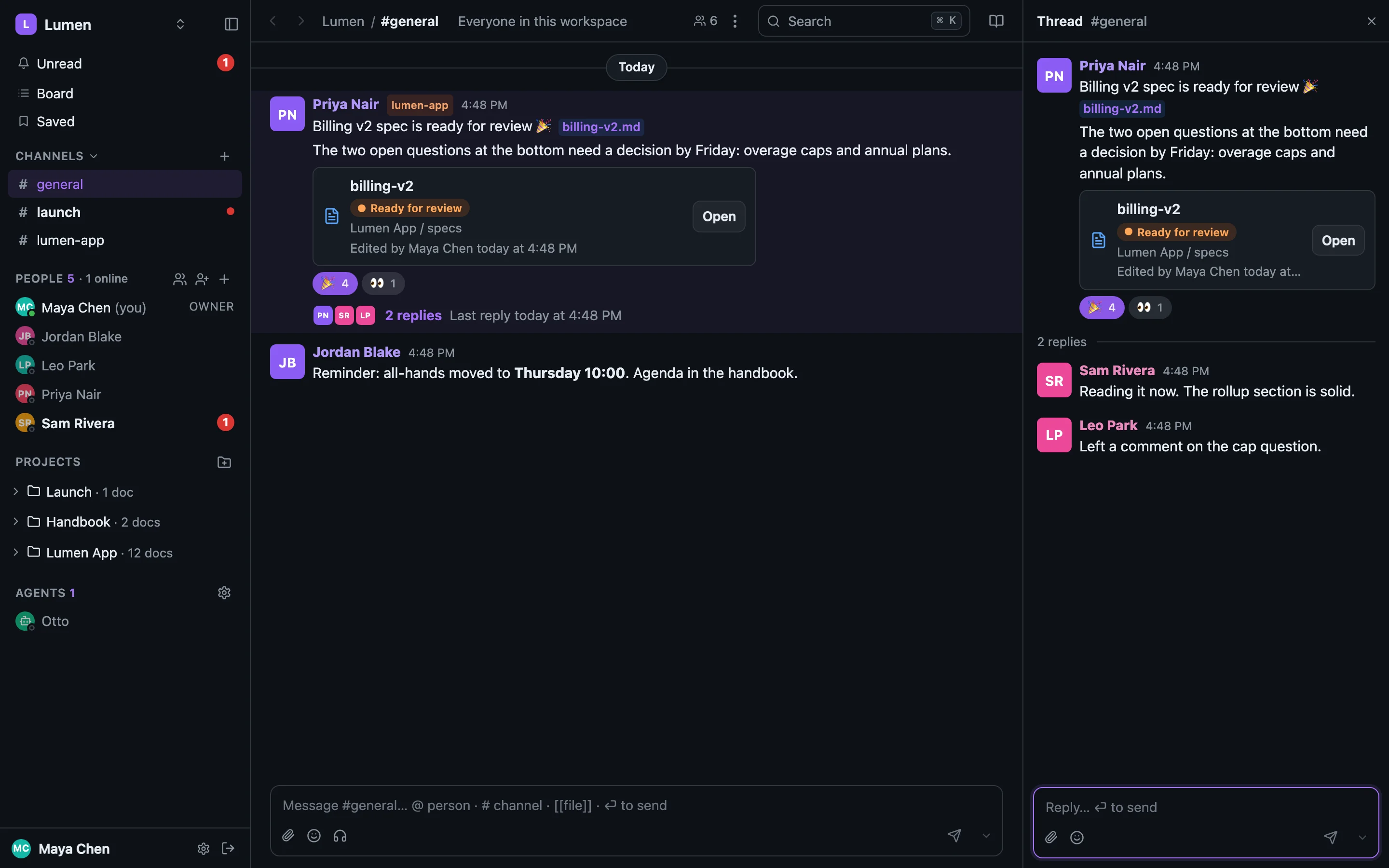
Open a synced file in your editor, change a word and save. Within a second or two it changes in the browser. Then comment on a passage in the browser; a read-only <doc>.comments.md appears beside the file.
sharedoc sync status                  # live, nothing in the ERROR column
sharedoc sync logs --lines 20         # "connected … ⇄ wss://…"
sharedoc files list lumen-app --since 1h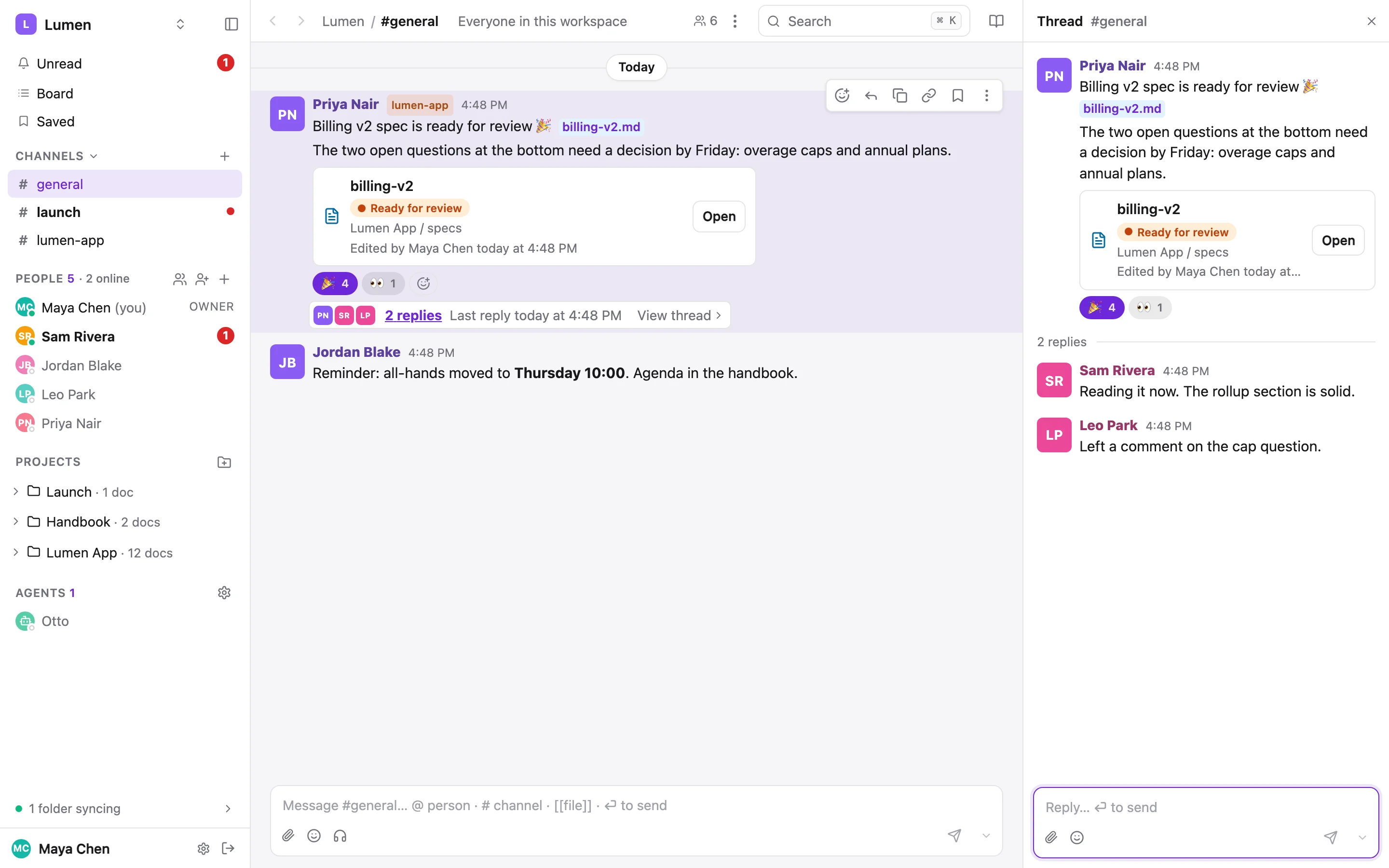
Next steps#
- Invite your team. The gear beside the project opens its settings: invite by email, or make a join link with a role and an expiry. Sharing & permissions
- Mirror the chat for your agent.
sharedoc sync add --channelswrites every channel and DM you can see to~/sharedoc/chat/as markdown. Working with agents - Hand your agent the skill. Save /skill.md as
~/.claude/skills/sharedoc/SKILL.md(or your agent's equivalent). - Install the web app. Chrome's install button, Safari's File → Add to Dock, or Share → Add to Home Screen on a phone. It gets its own window and real notifications.
Already have a repo?#
Pair its docs/ folder, add /docs/ to .gitignore, and paste the docs/ is synced, not committed section from sharedoc-instructions.md into CLAUDE.md or AGENTS.md. The whole routine, including moving docs that git already tracks, is in Docs in your repo.
Pitfalls#
- Pair
docs/, not the repo root. The sync doesn't read.gitignore, only its own defaults and a.sharedocignore. The CLI refuses a folder holding.git. - One engine per folder. The service or
sharedoc connectin a terminal, never both: two engines push each other's pulls. - Dotfiles never sync.
.env,.github/and.share-doc/stay on your machine. *.comments.mdis generated. Read it; reply withsharedoc thread reply; never edit it.