Features
Files & media
A project holds any file, not just markdown: screenshots, PDFs, videos, exports, HTML reports. They sync like docs, preview in the browser, and can be linked from docs and messages. Nothing is ever deleted outright; it's archived.
Previews#
Click any file in the tree, a folder or a [[link]] and it opens in the previewer:
- Images and SVG, with thumbnails in lists and search results.
- PDF, in the browser's viewer.
- Video and audio, with a player that keeps playing and seeking for as long as you're watching. A video your browser can't decode (an HEVC
.movoutside Safari) says so and offers the download, and so does an audio file (an.oggin Safari). - Code and text, as text.
- HTML, as the page it is (below).
- Anything else gets a download.
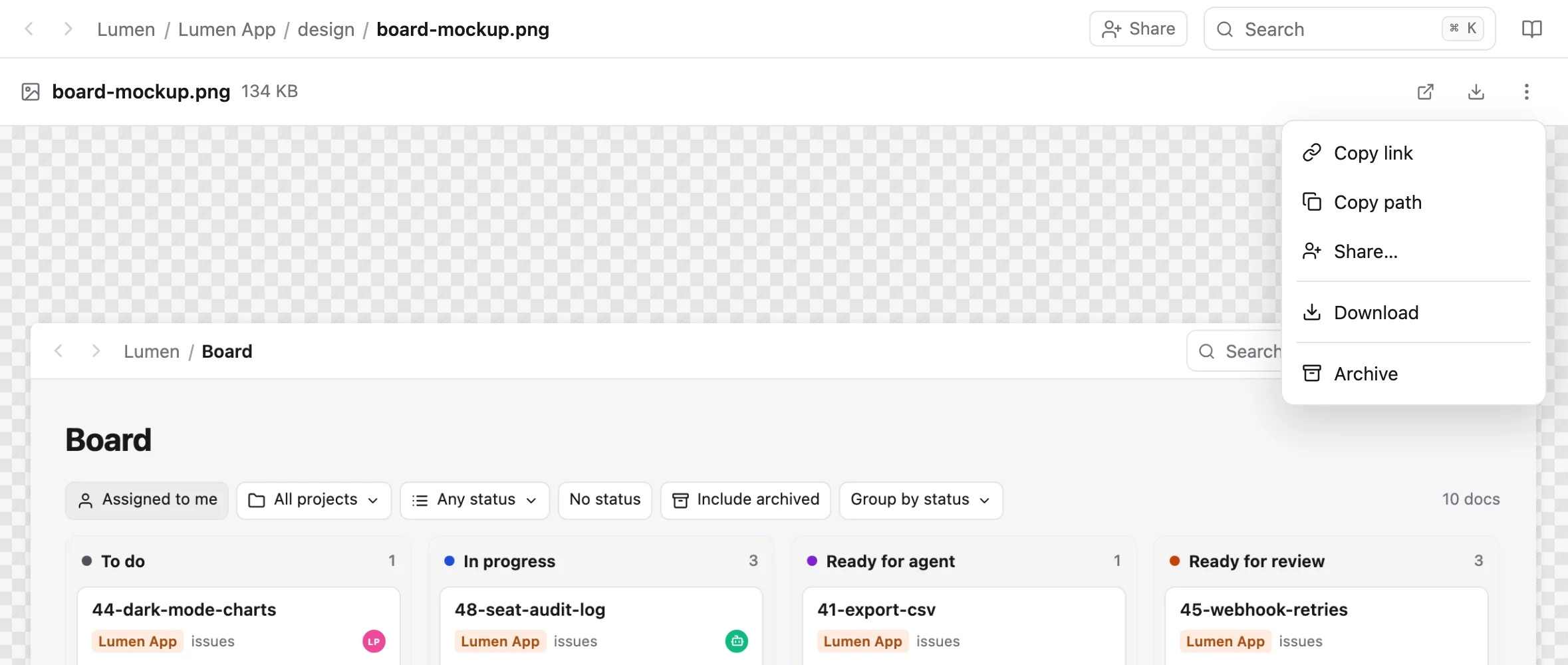
Each file has a ⋯ menu in the bar above it: Copy link (the file's page), Copy path (where it lives in your synced folder), Share…, Download and Archive. Downloads keep the file's name.
HTML pages#
An .html or .htm file opens as a page, scripts and all: a generated report, a chart, a brand board. It runs in a sandbox, so it can't see your session or anything else in the app, and a link inside it opens a normal tab. Images, fonts and stylesheets beside it in its folder load as they did for whoever made it. </> in the preview bar shows the source.
An open page updates itself. When an agent, the sync service or a teammate writes a new version of the page, or of a file it loads from its folder, the preview reloads at the same scroll position, with no flash. A burst of saves is one reload.
Have an agent regenerate reports/usage.html in a synced folder and everyone watching it sees the new version appear in place.
The folder view#
Click a folder for a thumbnail grid with a preview pane. From there you can Upload or drop files, copy a file's [[path]], Move to… another folder, and Archive. Clicking the folder's name in the breadcrumb copies its path. A + on a folder in the sidebar starts a new doc inside it.
In the sidebar, folders start closed and load when you open them, so a project of thousands of files opens as fast as a small one; the folders you open are remembered in that browser. A folder's ⋯ menu has Hide from sidebar, for you alone: its files still sync, show in search and open from links, and a Hidden group at the foot of the tree brings it back.
📥 _inbox#
Every workspace has an _inbox: the drop box for files with no destination yet. A file pasted into chat, dropped on a doc (other than an image, video or audio file), or uploaded without a folder lands there, filed by month. It's hidden from the sidebar by default. ⌘K opens it, and Your settings → Appearance brings the row back.
Move to project… gives a file a home. From then on it follows that project's access like any other file.
Private attachments#
A file stays as private as the place it was sent:
- A file sent in a DM, a group DM or a private channel is visible only to the people in that conversation, workspace admins included.
- A file dropped on a doc in a private project, or on a comment there, is visible only to people who can open that doc.
- Tagging a private file in an open channel shows the tag, not the file.
- A file posted in a public channel, or in a workspace-wide project, is visible to the workspace.
Links to a private file expire within 20 minutes. Move to project… is how you share one wider; sharing it directly with someone works too.
Uploading#
- In a doc: paste or drop an image, video or audio file and it goes into
media/beside the doc with a relative link. See the editor. - In chat: paste, drop or attach (📎, or 📷 on a phone). Pictures show under the message; several tile two-up.
- In a synced folder: save the file. The sync picks it up.
- From the CLI:
sharedoc files put, or--attachon a post.
iPhone photos arrive as JPEG, converted in the browser, and a photo larger than 20 MB or 4096 px on a side is scaled down first. Big uploads go up in parts with progress, and a failed part is retried on its own. Files are limited by the workspace's largest-file setting (5 GB by default) and its total; see Sync.
On a phone#
An image or video has a big Save image / Save video button. On iPhone and Android it opens the share sheet with the file itself, so Save Video puts it straight into Photos.
Archive, not delete#
Archiving a file closes it rather than destroying it. It leaves the tree and the default search, stays readable at its URL with a Reopen button, and keeps its history and comments. Archived docs sit in a dimmed Archived group at the bottom of their project.
- Deleting a file in a synced folder archives it on the server.
- Turning a folder off in selective sync never archives anything.
is:archivedin search finds archived files.
From the CLI#
sharedoc files list lumen-app                        # the tree, with status and assignee columns
sharedoc files list _inbox --since 1h                # what was just dropped
sharedoc files cat lumen-app specs/billing-v2.md     # the markdown, exactly
sharedoc files cat lumen-app specs/billing-v2.md --with-media   # plus every image and link, resolved
sharedoc files cat lumen-app media/whiteboard.jpg --thumb --out ./thumb.webp
sharedoc files links lumen-app specs/billing-v2.md   # images and links as project paths
sharedoc files put lumen-app reports/usage.html --from ./usage.html
sharedoc files mv lumen-app notes/old.md archive/old.md
sharedoc files archive lumen-app issues/46-invoice-pdf.md --yes
sharedoc files reopen lumen-app issues/46-invoice-pdf.md
sharedoc files url lumen-app media/demo.mp4 --ttl 3600   # a signed link
files put on markdown merges into the live doc: pass --base <version> with the version you read and it's a three-way merge, so an agent never overwrites someone typing. --strict refuses instead of merging overlapping edits. A move follows into every synced folder. More in the CLI reference.