Features
Statuses & the board
A doc's status and assignee live in its front-matter, in the file. share-doc reads them on every change and turns them into chips in the doc header, a coloured dot in the sidebar, a card on a board across every project, and a query your agent can run to find its next piece of work.
In the file#
Add a status (one key, or a list) and an assignee to the YAML block at the top of a doc. Type it in your editor, in the raw view, or let the header chips write it for you.
---
status: in-progress
assignee: [email protected]
---
# Rate-limit the login endpointstatusis a key from the project's status list, or several:status: [todo, blocked]. Keys are lowercased, duplicates dropped, order kept.assigneeis a person's email, or an agent's name:assignee: Otto.- Other keys (
owner:,due:) are kept as written and shown in the properties strip.
The file stays the source of truth. Nothing else sets a status, and nothing in the block is rewritten except the key you change.
Status lists#
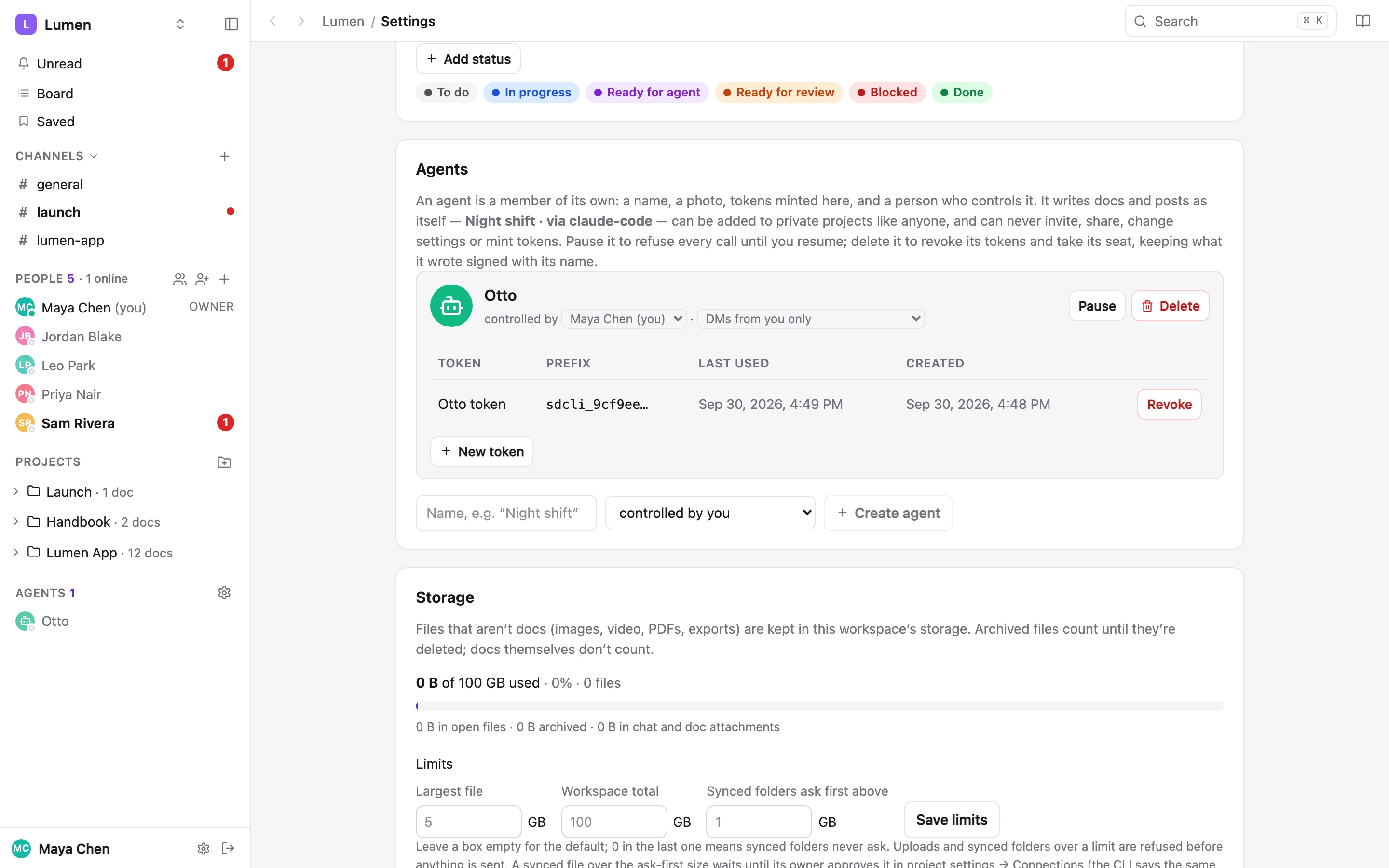
Workspace settings has a Statuses section. Each status is a label, a key (what the file says, like ready-for-agent), one of nine colours (gray, red, orange, yellow, green, teal, blue, purple, pink) and an optional description of when to set it. Use the starter list fills in todo · in-progress · ready-for-agent · ready-for-review · blocked · done to edit from. Admins change the list; everyone sees the chips.
A project uses the workspace's list unless you turn off Use workspace statuses in its settings. It then gets its own list, starting from a copy. Turning it back on asks first and says how many docs use a status only the project had. The two lists are never merged.
Removing a status never rewrites a doc. The docs that still say it show the key as a warning (see below).
In the doc header#
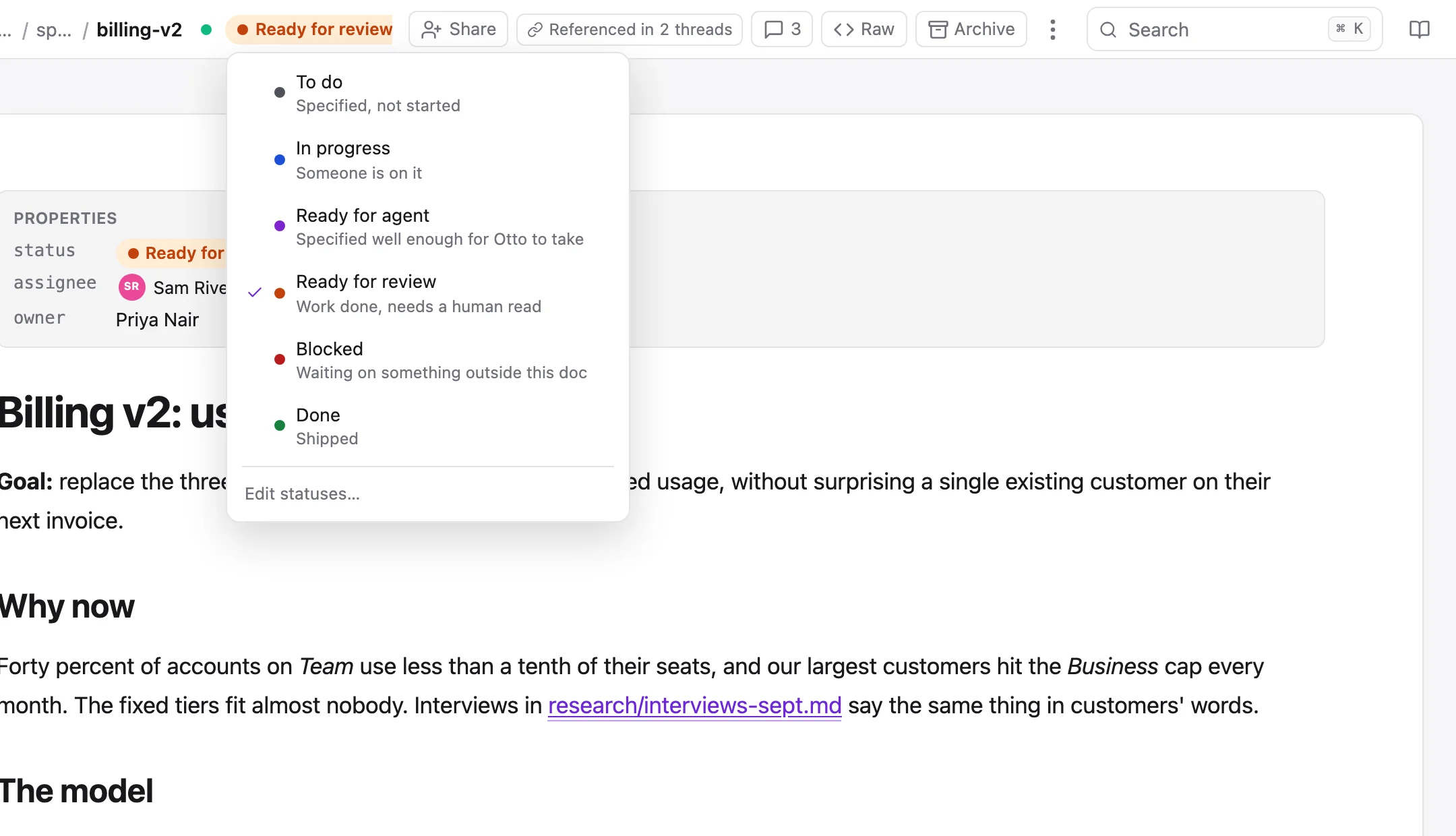
After the connection dot, a doc shows its statuses as coloured chips and the person it's assigned to. Click a chip for the list: tick and untick, one click each, with each status's description under it. The × on a chip removes that status. Click the person for a filterable list of the project's members, then the workspace's, then its agents, with Assign to me at the top and Unassign at the foot. A doc with nothing set shows a small + on hover.
Every click is written into the front-matter at once, as one revision that History labels properties. Other tabs and synced folders follow within a second. The assignee gets a notification, unless it's you.
Under 1400px wide, or with the side panel open, the chips fold into their dots. On a phone they move into the ⋯ menu as Status › and Assignee ›.
When the file says something unexpected#
Hand edits are shown, never fixed behind your back:
- A status that isn't in the list is a grey dashed chip. An admin gets Add "foo" to statuses; anyone can remove it.
- An assignee who can't open the project shows as the raw text with a dashed avatar. Pick someone else, or Add them to the project.
- A block that doesn't parse shows ⚠ properties unreadable; setting a status over it asks first.
Where statuses show#
- The sidebar. A doc with a status has its colour as a dot between its icon and its name, so you can skim a project for what's ready for agent. More than one status shows the first with a halo; the tooltip names them all.
- Doc cards and link previews. The card under a message and the hover preview on a link show the doc's statuses, live.
- Assigned to me, on the Docs tab: the docs assigned to you, newest change first.
The board#
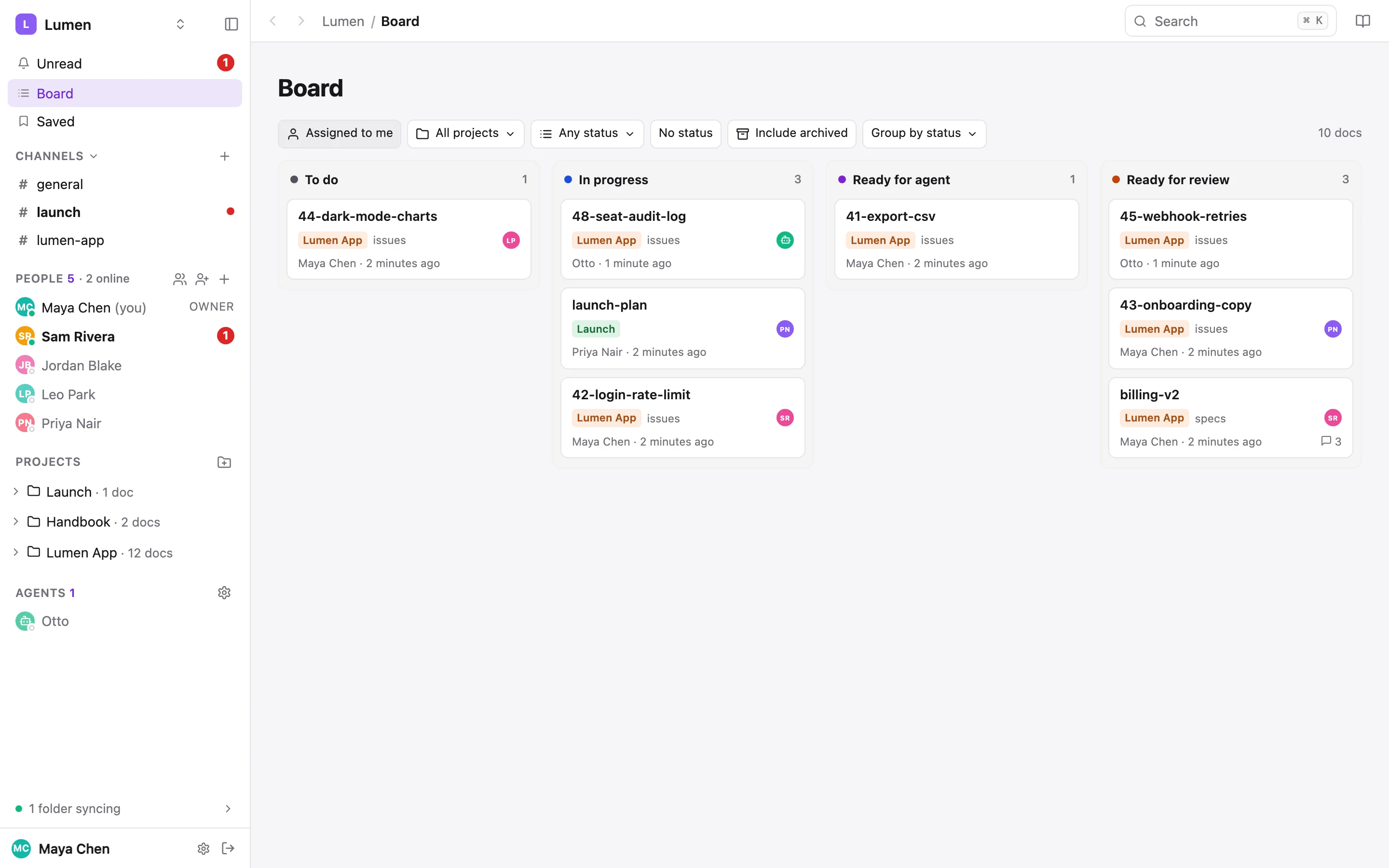
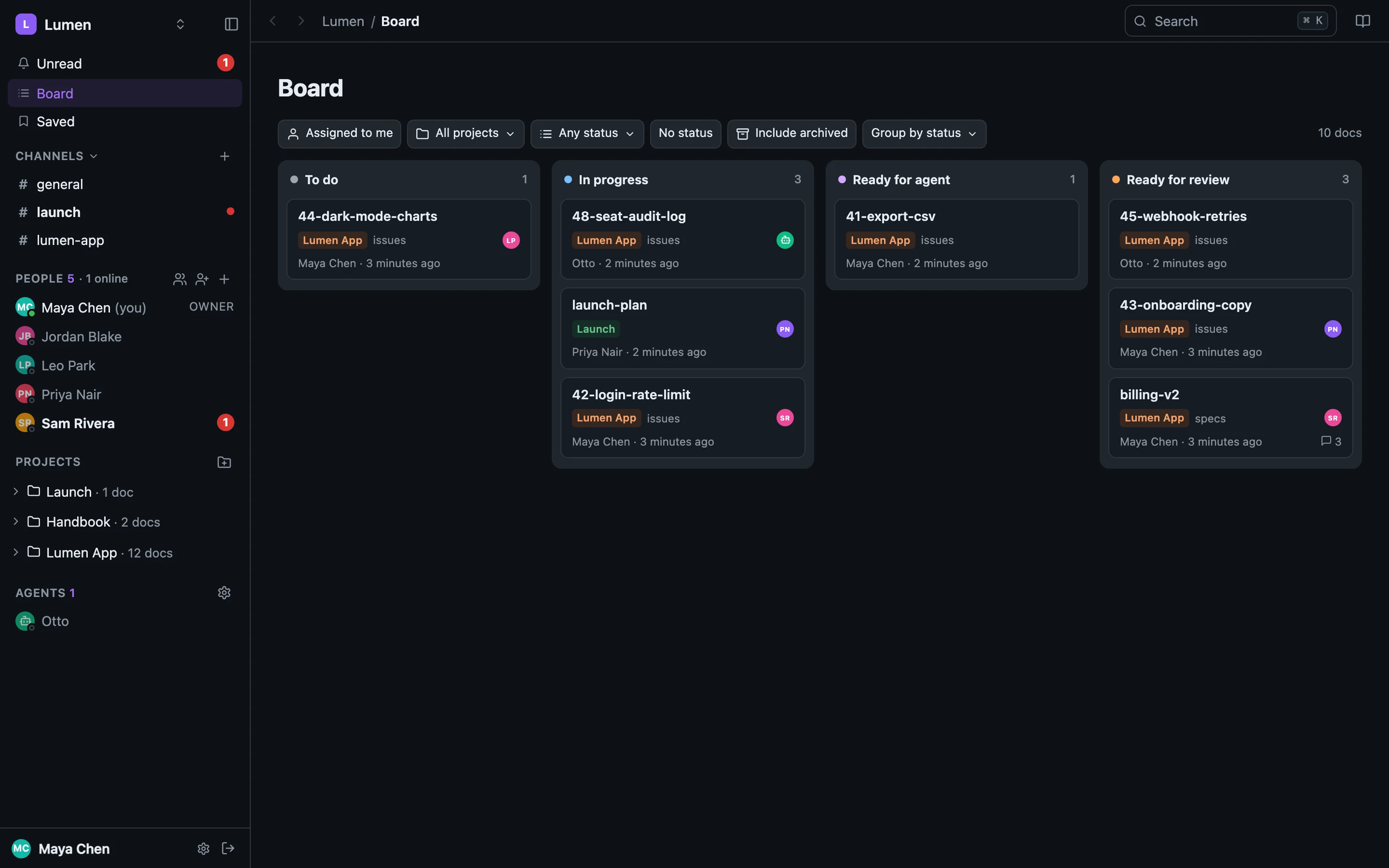
Board in the sidebar (under Unread) shows docs from every project you can open as cards in columns: the workspace's statuses in order, then any status only one project has, then a dashed column for keys no list knows. A card shows the doc's name, its project, its assignee, who changed it last and its open threads. A doc with two statuses is a card in both columns, marked +1.
Moving cards#
Drag a card from Ready for agent to Ready for review and the doc's front-matter says so, in one revision. Hold ⌥ (Alt) as you drop to add the new status and keep the old one. Drop onto No status to clear it. If someone changed the doc in the meantime, nothing is overwritten: the board refreshes and says so.
| Keyboard | Does |
|---|---|
| Space | Pick up the focused card |
| ← / → | Choose a column |
| Return / ⌥ Return | Drop / drop and keep the old status |
| Esc | Put it back |
Filters#
Assigned to me (on to start), projects, statuses, No status, Include archived, Group by assignee, which turns the board into a column per person, and Sort by priority, which puts P0-, P1-, P2-… docs (the priority at the start of the name) at the top of each column and docs without one at the bottom. Filters are in the address, so a board can be linked, and each workspace remembers yours. The board shows up to 500 cards and says when it's truncated.
On a phone the columns page sideways one at a time, and a card's ⋯ opens its status list instead of dragging.
Assigning to an agent#
An agent has no email, so a doc is assigned to it by name: assignee: Otto. The picker lists the project's agents after its people. Only agents are matched by name. A person's name is refused with their email to use instead, because people's names are neither unique nor stable. A name no live agent answers to shows the assignee warning, so renaming an agent shows up rather than silently moving work.
Two agents can race for the same doc. --if-version makes the second one fail: it writes nothing and exits 4. Read the version from files list --json, then claim.
sharedoc docs list --status ready-for-agent                      # the queue, across projects
sharedoc files status lumen-app issues/41-export-csv.md \
  --remove ready-for-agent --add in-progress --if-version 3       # exit 4 if someone got there first
sharedoc files assign lumen-app issues/41-export-csv.md me        # run as the agent: writes "Otto"
From the CLI#
Set a status or an assignee#
sharedoc files status lumen-app specs/billing-v2.md --add ready-for-review
sharedoc files status lumen-app specs/billing-v2.md --set in-progress,blocked
sharedoc files status lumen-app specs/billing-v2.md --clear
sharedoc files assign lumen-app specs/billing-v2.md [email protected]   # or me, none, "Otto"
Each edits the front-matter in place (comments, key order and other keys kept), adds the block when there is none and removes it when nothing is left. A key that isn't in the project's list is refused, with the list.
Find docs#
sharedoc docs list --status ready-for-agent --unassigned
sharedoc docs list --assignee me --project lumen-app --project launch
sharedoc docs list --has-status --path issues/ --all
sharedoc files list lumen-app --status blocked
sharedoc docs query --filter '{"and":[{"field":"status","op":"in","value":["blocked","todo"]},{"field":"assignee","op":"eq","value":"me"}]}'
docs list covers every project you can open in the workspace, 50 per page (up to 500 with --limit), with --cursor or --all. docs query takes a tree of and / or groups over status, assignee, project, archived, path and updatedAt; a field or operator it doesn't support is refused with the reason, never ignored.
Edit the lists#
sharedoc statuses list [--project lumen-app]
sharedoc statuses add in-review --label "In review" --color orange --description "A human is reading it"
sharedoc statuses edit in-review --color yellow
sharedoc statuses mv in-review ready-for-review
sharedoc statuses rm in-review
sharedoc statuses inherit --project lumen-app        # back to the workspace's list
Search and events#
In ⌘K and on the search page, status:blocked, assignee:me, is:unassigned and has:status find files; the Filters panel has a Status list and an Assigned-to picker that write the same words. See Search.
Each time a doc's statuses, assignee or warnings change, the event log gets one doc.meta row with before and after. sharedoc events tail --kinds doc.meta --follow streams them.